Guide created by
Compressing in LL/Psync!
Follow this guide to make your file size smaller, and everyone's lives better!
1
STEP ONE
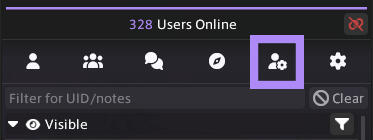
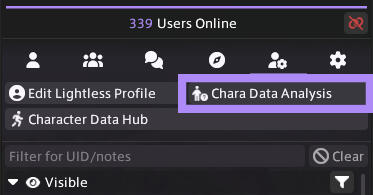
Open your Lightless or PlayerSync window, then locate the small icon that looks like a person with a gear next to them. Click the button that says "Chara Data Analysis."
2
STEP TWO
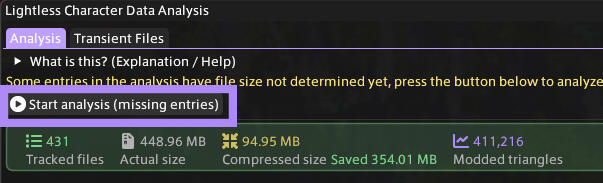
In the window that opens, click the button that says "Start analysis (missing entries)."Also note that you can see your own current file size here.
3
STEP THREE
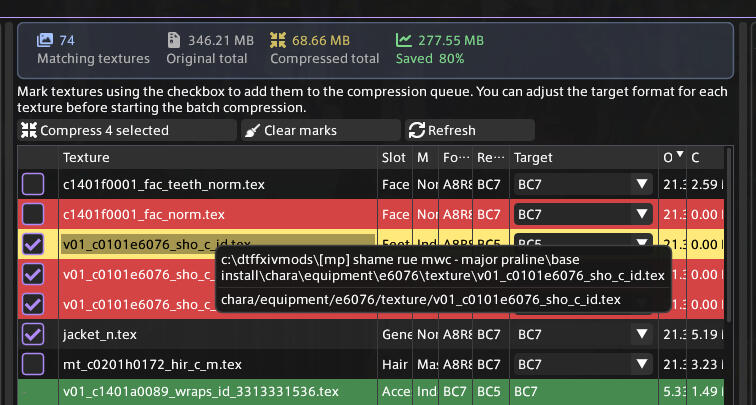
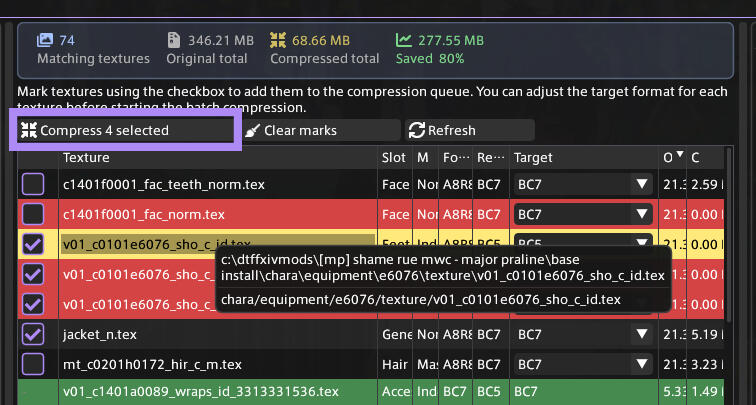
LIGHTLESS: Near the middle of your window, you'll see a list of your mods, also showing the texture path and the Item Slot each mod affects.
In order to see what mod you may be compressing, mouse over the path in the Texture column.
PLAYERSYNC:
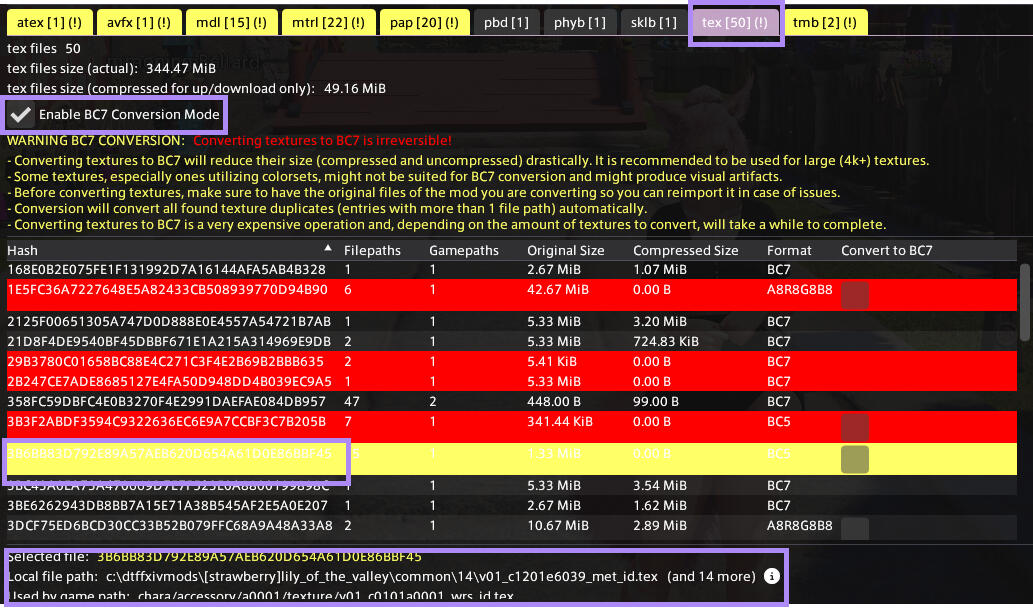
Navigate to the "tex" tab and check the "Enable BC7 Conversion Mode" box.
In order to see what mod you may be compressing, click the long string of letters and numbers under the "Hash" column. The mod path will be listed at the bottom of your window (note: you may need to expand your window to see it).
4
STEP FOUR
YOU WILL BE COMPRESSING ALL CLOTHING MODS. You can choose whether you'd like to compress hair, skin/scales, and face mods--keeping in mind that you will probably NOT want to compress more detailed things like sculpts.
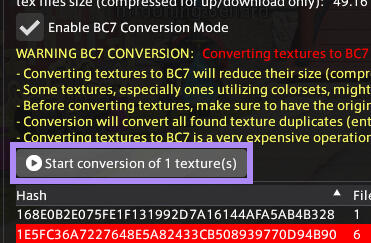
Once you've decided which mods to compress and you've selected them, click the "Compress xx selected" (LL) or "Start conversion of xx textures" (PSync) button.
Conversion will take a few minutes to complete.
ALL DONE!
You may now run your analysis at the top again to see how much you compressed.
Good rule of thumb: try to stay BELOW 500MB if you can!